Updated 2026-09-27
Vercel integration
Install the Vercel integration, choose the project, and grant access when that project is missing from the list.
Prerequisites
- A Modifee project whose repository is on GitHub.
- Access to the Vercel team that owns the deployment.
You can start from the project Settings page (Previews, or Client access → Signing secret when Authentication is App with login), or from workspace Settings → Integrations.
Steps
Install
- Press Connect Vercel.
- With no Vercel account stored yet, Modifee sends you to Vercel to install the integration. Approve it for the account or team that owns the project.
- You come back to the dashboard.
The account line is "Vercel account ·" the account name, with the badge Connected. On Settings → Integrations the card Vercel uses the same badge. The note there is "Connected accounts can create preview bypass secrets for linked projects."
A connection that is already stored does not start install again. Connect Vercel, Reconnect, and Don't see your project? Grant access in Vercel open the installed integration on Vercel. That page is where Project Access is edited.
Notices you can see on return:
- "Connected to Vercel."
- "Connected to Vercel · previews accessible to your clients ✓"
- "Connected to Vercel. Choose the Vercel project for this repo."
Choose the project
The list is the projects this integration can already see. It is loaded from Vercel, not from a saved copy.
If exactly one granted project is this GitHub repo, Modifee links it and pushes MODIFEE_SECRET without asking you to pick. More than one match leaves the matching names in Vercel project.
On Signing secret:
- Open Vercel project. The placeholder is "Choose a Vercel project".
- Press Connect Vercel. If a project is already linked, the button is Switch to plus the project name. The current row says "Linked to Vercel project:" the name, and Change.
- The toast is "Connected to Vercel project" plus the name. The button then reads Connected ✓.
On Previews, under Access and Automatic (recommended):
- Open Vercel project. The placeholder is "Choose a project".
- Press Link project.
If that Vercel project is not connected to this GitHub repo, Modifee asks "This Vercel project is not connected to" the owner/repo name, then "Link it anyway?" Press Link anyway to keep it. The card can also show "This Vercel project is not connected to" that same name.
Linking pushes MODIFEE_SECRET when the project has an API key. See Signing secret.
A project that is not in the list
The integration only lists projects it was granted.
- Press Don't see your project? Grant access in Vercel, or Add this project's access in Vercel under "Your Vercel integration only has access to some projects."
- On Vercel, open Project Access for the Modifee installation and include the project.
- Back on Signing secret, press Refresh.
"None of your granted Vercel projects use" the owner/repo name means the granted list has projects, and none of them is this GitHub repo. Grant this project, or link another and confirm Link anyway.
Permissions
The Vercel consent screen groups them like this.
Read:
- Installation
- Deployments. Reads the production deployment so Modifee can tell whether
MODIFEE_SECRETis live.
Read and Write:
- Projects. Lists projects, links one, and creates or revokes the bypass secret labeled "Modifee client previews". Missing: "The Modifee Vercel integration is missing the Projects read-write scope."
- Integration-owned Project Environment Variables. Writes
MODIFEE_SECRETon Production and Preview. Missing: "The Vercel integration cannot read or write environment variables. Add the Environment Variables permission on the Modifee integration, then reconnect Vercel."
Deployments moves to Read and Write when the redeploy permission is included. That is what Redeploy now uses. Without it, Vercel returns 403 and the banner says "Redeploy from Vercel or push a commit." The server reason is "Missing deployment permission."
An installation that is already connected does not pick up a new permission by itself. In Vercel, open Integrations → modifee → Manage and approve the permission update. Then press Redeploy now again.
Les libellés peuvent changer côté Vercel.
Why Modifee needs a bypass secret
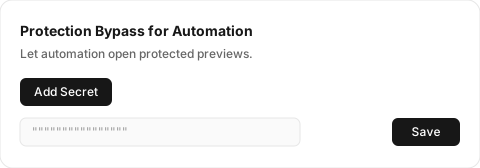
Vercel Authentication sends anyone who opens a preview to a Vercel login page. Your client must never see that page. A Protection Bypass for Automation secret lets Modifee open the preview for them.
Needed once per Vercel project. Takes 30 seconds.
-
Open Deployment Protection in Vercel. The page is
https://vercel.com/{team}/{project}/settings/deployment-protection. It opens in a new tab from Settings → Previews. -
Scroll to Protection Bypass for Automation → Add Secret → Save.
-
Copy the secret and paste it here. Back on the Modifee tab, Settings → Previews looks for the secret on its own. You can also paste it into the field.
Verify
- Settings → Integrations shows Connected on Vercel.
- Signing secret shows "Linked to Vercel project:" and the project name.
- The project you need is in Vercel project after Refresh.
Preview bypass setup is Protected previews.
Troubleshooting
- "Vercel integration is not configured."
- "This Vercel connection link expired. Start again from Settings."
- "Vercel did not return an authorization code."
- "Could not connect Vercel."
- "Could not connect Vercel to this project."
- "Vercel connection lost, reconnect"
- "No Vercel account connected."
- "No Vercel project is linked to this repository yet."
- "Choose a Vercel project."
- "That Vercel project is not on the connected account."
- "Could not reach Vercel."
- "The Modifee Vercel integration is missing the Projects read-write scope."
- "The Vercel integration cannot read or write environment variables. Add the Environment Variables permission on the Modifee integration, then reconnect Vercel."
- Disconnect on Previews or on Settings → Integrations revokes the "Modifee client previews" bypass Modifee created. Other bypass secrets stay. The toast is "Disconnected".